This is a truly weird bug.
If I enabled iCloud Keychain sync in Mavericks all of my Contacts would duplicate. One set would show up with the header of 'iCloud', the second (new) set would have the heading 'iCloud jf" where jf are my (true) initials.
The two sets appeared truly identical. Edits to one appeared in another. My iPhone Contacts were not affected.
If I turned off iCloud Keychain sync I could unclick Contacts in iCloud preferences and watch one set disappear. Then it would check itself back on. I unchecked again and a second set disappeared. Then I rechecked it and the first set of Contacts returned Lastly I reenabled iCloud Keychain and the second set of Contacts reappeared.
I think this bug is related in part to the .me to .iCloud transition. I say that because my iCloud account used the old '.me' domain. It's supposed to be interoperable with iCloud, but I guess it really isn't. I signed out of everything on my iMac and left iCloud, then restored using the '.icloud' domain. Now I have one set of Contacts and I have Keychain sync enabled.
Curiously, even after the fix, the Accounts setting in Contacts shows the .me suffix. I can't edit that, it claims to be inheriting from Preferences. iCloud support in Mavericks is a real hack. I probably can't wait for El Cap, will need to accept Yellowstone after next bugfix release.
Wednesday, June 10, 2015

Saturday, June 06, 2015
Google Photos is a wrapper over Picasa Web Albums
Google Photos uses the Picasa Web Albums API, it doesn't have its own API:
The Google Drive integration, by the way, is a dangerous hack. Avoid it for now.
The Picasa uploader doesn't support Google Photo's image compression format (WebP?), so I wonder if those images will count against storage totals.
I hope we get an API, particularly with support for creating or selecting albums at upload time, any minute now...
- Google Plus API & photos? - Stack Overflow - use Picasa Web Album URL
- image - Google Plus Album Urls - Stack Overflow - all Google+ Photos are Picasa photos. You can get albums back as JSON too
The Google Drive integration, by the way, is a dangerous hack. Avoid it for now.
The Picasa uploader doesn't support Google Photo's image compression format (WebP?), so I wonder if those images will count against storage totals.
I hope we get an API, particularly with support for creating or selecting albums at upload time, any minute now...
Friday, June 05, 2015
Domain configuration - notes on www and naked domains
I’m writing this primarily for myself. I’ll try to update it as I learn more.
I’ve used DreamHost for years, I have several domains there. Recently I created one for our mountain bike team - hpmtb.org. I set it up as “Fully Hosted” and created a few subdomains so I could create a subdomain like http://fb.hpmtb.org that would redirect to our Facebook site. (This is probably not the best way to do this, maybe better to use Apache URL rewrites with .htaccess)
I was even able to get a wiki.hpmtb.org subdomain to work properly with wikispaces.
That’s when I ran aground. I wanted the naked domain, or www.hpmtb.org to point to that same wiki page. As best I can tell, with DreamHost, you can’t do that through DNS or domain configuration. For one thing, www.domain.com and domain.com are treated by DreamHost as synonyms. You can’t really have them behave differently.
For another DreamHost, for a fully hosted domain, sets up a fixed type A DNS record to reference DreamHost’s IP address.
Can this be done for a DNS only configuration, with hosting disabled?
I think there’s a way to do it with Google Apps, in particular I’m pretty sure there’s a way to have a naked domain or www.domain reference a Google Site. I’m just not quite sure how to do it. Clues might be in these references ...
- DNS basics - Google Apps Help: Create blank A record for 216.239.32.21. Note Google then redirects www to gas.googlehosted.com
- Enable your "naked" domain address - Google Apps Help
- About CNAME records - Google Apps Help
- About A records - Google Apps Help
- Configure A records - Google Apps Help: check out the values and IPv6 support with AAAA
Phew. This is a tiring domain to explore. Not only is it fundamentally complex, the documentation is marginal (Google has the best, but it’s Google Apps specific) and experimentation is hard. It’s easy to mess up a domain, and changes can take time to propagate. There are lots of quirks; I discovered Chrome will cache DNS redirects, so if you make a change and Chrome doesn’t seem to know about it try incognito mode. Good luck!
Thursday, June 04, 2015
Domain registrar transfer pains - something broken between eNom and Dreamhost (or me)
I've transferred several eNom domain with associated Google Apps services to Dreamhost. This is the first time I've been really stuck.
I'm trying to move kateva.org from eNom to Dreamhost. Dreamhost already provides DNS services, so it's "simply" a registrar transfer. I've done several of those.
This time the process is failing after I get an "authorization key" (EPP) from eNom/Google and I complete the Dreamhost authorization key submission. Instead of receiving a Google email (takes 1-2 hours):
Unfortunately level one tech support doesn't know the details how this status shows up in their system. (They also can't explain why Dreamhost doesn't expose this status in the user accessible control panel or generate an email. I think there's a hole in their workflow process, but this could also be a bug in their system.)
At this point I'm hoping I can escalate to tier 2 support. Then I can interview somebody who should know how the status code is generated, and whether the bug is with Dreamhost (already known to have a process problem) or eNom (gonna be hard to talk to) or me (always possible).
Frustrating, but other than lost time worst likely outcome is I renew with eNom for another year. Then try again in 6 months and hope whatever is broken gets fixed.
Update 6/5/2015: Dreamhost tells me they're getting a formal transaction from eNom: "Invalid EPP/authorization key - Please contact current registrar to obtain correct key". So now I have to contact eNom at 425-274-4500. May the Force be with me.
I'm trying to move kateva.org from eNom to Dreamhost. Dreamhost already provides DNS services, so it's "simply" a registrar transfer. I've done several of those.
This time the process is failing after I get an "authorization key" (EPP) from eNom/Google and I complete the Dreamhost authorization key submission. Instead of receiving a Google email (takes 1-2 hours):
STANDARDIZED FORM OF AUTHORIZATIONI get radio silence. Tech support tells me Dreamhost's system shows a transfer status of denied ...
DOMAIN NAME TRANSFER - Confirmation of Registrar Transfer Request ...
kateva.org Canceled - Invalid EPP/authorization key - Please contact current registrar to obtain correct keyWe've been through this twice now with two keys. So I think something is broken (yes, user error cannot be ruled out, this is a complex process).
Unfortunately level one tech support doesn't know the details how this status shows up in their system. (They also can't explain why Dreamhost doesn't expose this status in the user accessible control panel or generate an email. I think there's a hole in their workflow process, but this could also be a bug in their system.)
At this point I'm hoping I can escalate to tier 2 support. Then I can interview somebody who should know how the status code is generated, and whether the bug is with Dreamhost (already known to have a process problem) or eNom (gonna be hard to talk to) or me (always possible).
Frustrating, but other than lost time worst likely outcome is I renew with eNom for another year. Then try again in 6 months and hope whatever is broken gets fixed.
Update 6/5/2015: Dreamhost tells me they're getting a formal transaction from eNom: "Invalid EPP/authorization key - Please contact current registrar to obtain correct key". So now I have to contact eNom at 425-274-4500. May the Force be with me.
Tuesday, June 02, 2015
Facebook still has RSS feed for Pages. For the moment.
Once upon a time Facebook had RSS support for personal Newsfeeds. That died years ago.
I don't know if Facebook ever had RSS support for Groups; Groups used to be pretty limited. They don't now.
Pages though, they've always had RSS feeds. It's just getting a lot harder to find.
I may be dreaming, but I thought there used to be an official RSS link somewhere. If so it quietly passed on, maybe in the last 6-12 months.
The old Feed URL format still works though:
The trick is finding the Page ID. Facebook keeps moving it around. As of June 2015 find it here:
I don't know if Facebook ever had RSS support for Groups; Groups used to be pretty limited. They don't now.
Pages though, they've always had RSS feeds. It's just getting a lot harder to find.
I may be dreaming, but I thought there used to be an official RSS link somewhere. If so it quietly passed on, maybe in the last 6-12 months.
The old Feed URL format still works though:
https://www.facebook.com/feeds/page.php?id=121212where the number is the Page ID.
The trick is finding the Page ID. Facebook keeps moving it around. As of June 2015 find it here:
- Click About link beneath Page photo (Timeline, About, Photos, etc)
- Find Facebook Page ID at bottom of the About Link.
Saturday, May 30, 2015
Google Photos, Aperture and Google Drive - be careful
I'm a fan of Google Photos.
Sure, the next time Google's coin flips Evil side up my kids will appear in ads for laundry detergent. I get it; I'll delete my Google Photos then. I'm resigned to 2 year lifespans for Cloud services -- which is why I keep local control of things I care about.
It's not like there are good alternatives. Facebook? Many of my relatives don't use it. Smugmug? Expensive, can't do shared albums. Flickr? They've blown it so many times. Dropbox? I fear the end is in sight.
Apple? Seriously? Apple? Oh, I get it. You were pulling my leg.
So, Google. Among other things it means I can keep using Aperture for another year, hoping for better than (ugh) Photos.app 2015.
Uploading from Aperture is awkward though. There's no Export Plug-In, my old Picasa plug-in died when Google terminated its ClientLogin API last week. If I use the Google Photos desktop web UI I have to export to JPG from Aperture with a unique common string in the file names, upload all files, then do a search/create to put them in a Collection (album).
I'd rather use Google Drive. In theory I can create a folder in a special Google Drive "Google Photos" folder and export from Aperture to that folder, managing "albums" as file system folders. I can probably even use some Symbolic Link so the "Google Photos" doesn't use precious SSD space. Google Drive will do all the sync for me. Very nice -- in theory.
In practice, even though my non-Plus Google Photos service showed my Google Drive/Google Photos the albums don't appear. When I tried toggling the 'special folder' off in Drive settings the folder vanished from Google Drive (a problem if you're not ready for your photos to disappear). When I look at a different Google Photos folder through the web UI of Google Drive I see:

Sure, the next time Google's coin flips Evil side up my kids will appear in ads for laundry detergent. I get it; I'll delete my Google Photos then. I'm resigned to 2 year lifespans for Cloud services -- which is why I keep local control of things I care about.
It's not like there are good alternatives. Facebook? Many of my relatives don't use it. Smugmug? Expensive, can't do shared albums. Flickr? They've blown it so many times. Dropbox? I fear the end is in sight.
Apple? Seriously? Apple? Oh, I get it. You were pulling my leg.
So, Google. Among other things it means I can keep using Aperture for another year, hoping for better than (ugh) Photos.app 2015.
Uploading from Aperture is awkward though. There's no Export Plug-In, my old Picasa plug-in died when Google terminated its ClientLogin API last week. If I use the Google Photos desktop web UI I have to export to JPG from Aperture with a unique common string in the file names, upload all files, then do a search/create to put them in a Collection (album).
I'd rather use Google Drive. In theory I can create a folder in a special Google Drive "Google Photos" folder and export from Aperture to that folder, managing "albums" as file system folders. I can probably even use some Symbolic Link so the "Google Photos" doesn't use precious SSD space. Google Drive will do all the sync for me. Very nice -- in theory.
In practice, even though my non-Plus Google Photos service showed my Google Drive/Google Photos the albums don't appear. When I tried toggling the 'special folder' off in Drive settings the folder vanished from Google Drive (a problem if you're not ready for your photos to disappear). When I look at a different Google Photos folder through the web UI of Google Drive I see:

Riigght. The Google Drive/Google Photos integration isn't yet working properly for non-Plus personal (not Google Apps) users.
So be careful. I'll update this blog post if/when it works.
Update 6/1/2015: Don't use Google Photos integration with Google Drive.
A day or two after my initial post there are two Google Photos links browsable in the web client view of drive.google.com and one Google Photos folder in my desktop Google Drive collection.
The Drive_Google Photos link above now shows a view similar to iOS Photos.app, or photos.google.com but without collections.
Within "My Drive", and also on my desktop Google Drive, is a folder called Google Photos that holds all of my Picasa photos organized by dates, not by collections/albums.
You can add folders and images to the "My Drive" Google Photos folder. They will sync like any other Drive data, but they won't show up in photos.google.com or Photos.app.
I've read you can move images around in Google Drive, but this does not affect images on Picasa/Google Photos.
If you delete images from Google Drive:Google Photos, however, they will be deleted from photos.google.com/picasa. (I probably deleted a bunch doing these experiments.)
So the only thing Google Photos integration with Google Drive is good for at the moment is getting a local copy of the images (but not the album organization) of your Google Photos/Picasa images. It's also a great way to unwittingly blow away all your Google Photos.
This has NOT been though out. I'm disabling Google Drive/Google Photos integration and I urge you to do the same.
SymbolicLinker service - if it doesn't work, look for an older install
SymbolicLinker is an ancient but handy OS X service that, sadly, is not in the app store. It’s handy for doing things like putting a Google Drive to Google Photos sync folder on a big external drive while Google Drive primary folder is on your SSD.
You can run it in Mavericks (probably Yosemite), but you have to “whitelist” it by using the Open command in the Finder Context menu.
I did that recently, but Safari still complained. The clue was Safari said the download as from 2010 … but I’d just downloaded a “fresh” (2011!) version.
Turns out I had one copy in Services folder at User level and an old copy at root Library (all user). I just had to delete the old copy.
You can run it in Mavericks (probably Yosemite), but you have to “whitelist” it by using the Open command in the Finder Context menu.
I did that recently, but Safari still complained. The clue was Safari said the download as from 2010 … but I’d just downloaded a “fresh” (2011!) version.
Turns out I had one copy in Services folder at User level and an old copy at root Library (all user). I just had to delete the old copy.
Thursday, May 28, 2015
Google Photos. Home Run.
It's been a long time since I've said anything nice about Google. Maybe five years.
Today I must break from habit. Google Photos is amazing. I installed it on my iPhone this evening with Google credentials never blighted by Plus. It shows my Google Drive images (in Photos folder), all of my thousands of old Picasa Web images, and photos that are on my iPhone (via sync). The speed of display is amazing.
I browsed the collection from Google's web client (using Chrome) and created an album from images synced from my iPhone. I then started up web Blogger (MarsEdit is offline pending a Client login patch) and the album I just created appears in "From Picasa Web Albums".
From my iPhone I shared a different album to Facebook.
Well played Google, well played.
Now I have a photo sharing solution I like; one I much prefer to Apple's iCloud/Photos.app solution.
Today I must break from habit. Google Photos is amazing. I installed it on my iPhone this evening with Google credentials never blighted by Plus. It shows my Google Drive images (in Photos folder), all of my thousands of old Picasa Web images, and photos that are on my iPhone (via sync). The speed of display is amazing.
I browsed the collection from Google's web client (using Chrome) and created an album from images synced from my iPhone. I then started up web Blogger (MarsEdit is offline pending a Client login patch) and the album I just created appears in "From Picasa Web Albums".
From my iPhone I shared a different album to Facebook.
Well played Google, well played.
Now I have a photo sharing solution I like; one I much prefer to Apple's iCloud/Photos.app solution.
Tuesday, May 26, 2015
AT&T's international Passport program -- advice for iOS users
Android users — it’s your turn to bask in the warm glow of smug superiority. As best I can tell Android provides good tools for tracking and limiting data use.
Yeah, feel the pleasure.
We in the sad world of iOS can only dream of such advanced technology. iOS can’t cap data use, and it has limited and clumsy tools for reducing data use — not to mention the mysterious iTunes Accounts data suck. The best we can do is periodically “Reset Statistics” and track from that.
If only Apple had engineering talent …
Ahem. In any event, this isn’t much of a problem when I’m in the US. The AT&T Next Plan has worked well for Emily and I — between a recent extra GB and 1 month rollover we use half of our 3GB and our monthly cost is down by 25% [1].
It is a problem when I travel to Canada though. I used to swap SIM cards, but that was a royal pain and Canadian cellular providers are quite awful [2]. So a year ago I started using AT&T Passport [3]. Once I’m able to find the mystery link on the AT&T site I pay $30 up front for 120MB and (this is key) unlimited texting. It expires 1 month after setup — no need to cancel it on return (don’t cancel it, see below).
The problem, of course, is managing the cap when you’re stuck using iOS [4]. Do try to remember to reset your stats and track those numbers. You can also get an idea of data use by phoning *3282# (free, I think) - that gets a data use text. Problem is that the Canadian carrier takes days to get usage data to AT&T. By the time that text shows 100MB of usage you’re probably over.
The good news is that while you’re on the Passport program overage fees are “only” 0.25/MB (much lower than off-Passport rates). So going 30MB over isn’t the end of the world. (NOTE: It doesn’t make sense to pay $30 to buy an additional 120MB of Passport data — 0.25/MB * 120 = $30).
Bottom line - reset your stats if you remember, use the *3282# number and add 30%, use the limited iOS tools (esp. turn off email auto-check - I use Gmail.app when in Canada rather than Mail.app, don’t stream, turn off data roaming until you need data, etc), and expect but don’t worry too much about 30% overages.
Oh, and don’t think you need to cancel the program on return! That would mean when late fees arrive from the roaming carrier you pay full freight. You don’t get any discount for early cancelation and it will expire in 30 days.
See also
- Gordon’s Notes: Americans traveling through Canada: Telecom 2013 8/2013
- Canadian mobile for Americans: A primer. (Koodo, Google Voice/Hangout) 12/2014
- iPhone cellular data - what is iTunes Accounts and why does it use so much data? 7/2014
- International iPhone: Using a Canadian SIM card had surprising effects on return to US - Google Voice, Voicemail, Siri 10/2012 - still saw problems like this years later
- Wanted - a way to make an old style landline work over a cellular connection. 1/2015 - we ended up using Rogers “Home Phone” wireless for my father, worked out well with a companion plan for my sister.
- iPhone Cellular data — how to get by on only 2GB a month (for two people) 7/2014 (now it’s 3GB and rolls over, so not an issue for us)
- iPhone cellular data - what is iTunes Accounts and why does it use so much data? 7/2014
- fn -
[1] Yeah, I know about the subsidy component. It’s down even after taking that into account. At the moment I’m relatively pleased with AT&T. iOS data management deficits are more of a problem with the kids ultra-cheap low data H2O plans, but their devices are configured to minimize data use.
[2] You thought Verizon was bad? You have no idea. Think Comcast on meth.
[3] Confusingly this currently has very little to do with the oddly named “AT&T Passport app” - which has been useless for me.
[4] Now that Ive is shuffling off to England and semi-retirement maybe we’ll get less fashion, more utility?
Wednesday, May 20, 2015
How I moved my daughters iOS Notes from school to personal iCloud account
Please don’t put data into iOS Notes. Really, it’s quite horrid [1]
If you do you may find it’s stuck there. We ran into this when my daughter’s school iPad had to be wiped and we needed to rescue Notes that were only stored on her iPad (school iCloud account doesn’t support Notes, neither does school Google Apps).
I did this:
- Used AirDrop to move notes one at a time from her iPad to my iPhone 6 (her 4s doesn’t support AirDrop).
- Since my iPhone 6 is configured to use iCloud, each time a note arrived via AirDrop it went via iCloud to Notes.app on Mavericks [2]
- On Mavericks the notes appeared in my iCloud account. I added my daughters Google Account to my Mavericks User account. I could then select ALL notes (yay) and drag and drop them to the Google account.
- Then I created an OS X User account and associated it with her personal iCloud Account and added her personal Google Account. Then I did the drag and drop from her Google to her iCloud.
I did something similar with her school Contacts. Interestingly the account drag and drop behaves differently — Notes are moved, but Contacts are copied.
- fn -
[1] I took a look at the folder where Apple stores Notes.app data: ~/Library/Containers/com.apple.Notes/Data/Library/Notes. (Yes, the organization is bizarre). The data is in NotesV2.storedata-wal. I inspected the binary file in Mavericks [2] and found it contains text of Notes I deleted long ago. So if you had sensitive data in Notes.app deleting it won’t remove it from your Mac. It seems the file is never purged.
More — in Mavericks, it only looks like you can drag and drop notes to the desktop. It doesn’t actually work.
More — Notes can sort of hold images and rich text, in some Apple OS but not in others. Definitely not in Google IMAP.
More — Notes was implemented unsung an oddball IMAP hack. It’s like nothing else.
More — Like Contacts Notes can have Groups / Folders in OS X, but in iOS you can’t do anything with these.
There’s still more…
[2] Yeah, I’m still on Mavericks. Yosemite has … issues. I’m waiting for a fix for the crazy network problem.
Wednesday, April 15, 2015
iCloud Family Sharing: you can mix old style and new style sharing, but there's at least one bug
My family does old school iOS media sharing.
Everyone has their own Apple ID for iCloud, but we all use my App Store ID [1]. So we can all share media, apps and the like.
Modern iCloud Family Sharing has advantages though, and Apple is already making old school sharing harder.
Which leads to a question.
Say I configure Family Sharing for the 5 of us. [2] Can I mix-and-match old and new family sharing? If #2’s App Store ID is set to my current App Store ID, will he still be able to do old-school sharing?
I think Apple frowns on changing App Store IDs, there may be a limit…
- fn -
[1] Which is different from my iCloud Apple ID because of “.Mac". Don’t think about it too much.
[2] Max of 6 per family, which was once not an unusually large family.
Update 4/16/15 - Reports from app.net
… You can change Apple ID's, download an app and change right back. I do this for apps that I paid for IAP’s with an old account before Family Sharing…
… we do both … although family sharing has not become relevant yet, the old way of sharing apps is more convenient…
When I setup Family Sharing I found that my personal iCloud account was the “Organizer” account, but after entering those credentials my App Store Apple ID was the default for the purchase account. So Apple keeps those two separate.
I did run into a problem — Apple doesn’t provide purchase controls for adults; they didn’t think of special needs or guardianship. Happily, if I leave my old shared credentials as iTunes and App Store old rules apply — the Family Member is asked for my pw to make a purchase. I think if I switched the iTunes and App Store credentials to the user’s iCloud credentials they’d be asked for their Password at time of purchase — but that still requires my help, the kids don’t know their Apple ID passwords yet. So this problem has a workaround…
Thus far the best part of Family Sharing is iOS 8.3 “Find My iPhone”. It now lists everyone’s devices — and several devices that are gone from this earth.
Update 4/18/15: Not working quite as expected.
To recap, the kids have their own iCloud accounts, but the App Store/iTunes credentials are my .mac credentials, which are not my iCloud credentials.
Yeah, this is problematic. We need a way to merge Apple IDs.
In this configuration when they try to buy something I need to enter the .mac credentials. Even when I do that, however, they get a notice that the transaction needs to be approved. That’s fine, but the approval request never gets generates a notification against my Organizer iCloud account. I have an OS X user account bound to the .mac credentials, but that doesn’t get a notification either. So for now I’ve disabled Ask to Buy.
Monday, April 13, 2015
iOS 8.3 took away one of my favorite parental controls
With iOS 8.3 Apple made an undocumented change that will make a few kids happy.
No, not the post-update dialog that will lead many parents to unwittingly enable 15 minute authentication lifespans for purchases. Apple documented that feature. Here’s where you undo any mistakes by they way:

The real change is that users no longer need to enter the App Store account password to reinstall any app that’s been previously purchased with that account on any device. There’s no setting to revert back to the old behavior of managing a reinstall very much like an initial installation (respect password settings as above).
Why does this matter?
Well, let’s assume you install YouTube on the KidPhone and late find some highly educational porn. In the old days you could just delete YouTube and be done — assuming your user doesn’t know the App Store account password. Now users can simply download it again.
Now imagine the problem if you do old school App Store/iTunes credential sharing like we do — we each have our own iCloud accounts, but our FairPlay DRMd material is all associated with my App Store credentials. Yeah, everything can be installed. It’s a good thing I’m not into S&M apps.
I don’t know how this works with Family Sharing, the change is too new to see much commentary. For old-school families like ours there are 4 options based on this screen …

Your options are:
| Install Apps | Deleting Apps | Result |
|---|---|---|
| Off | On | App Store disappears so can’t install or update. You can’t update from iTunes either, so this setting is a pain in the butt. You need to go through the restrictions dialog to do app updates. User can delete apps which is convenient. |
| On | Off | App.net@ronnie suggested this one. User can download anything, but they can’t hide contraband. So if they install forbidden apps they get banished to “Install Apps Off” which is painful for everyone. |
| Off | Off | As option 1, but can’t remove apps. I can imagine limited use cases. |
| On | On | The default. |
For now I’m going with Install On and Delete Off, with the warning that forbidden fruit will lead to App Store removal.
I’d love to see a fix from Apple but it’s going to take a lot of complaining. I’m not holding my breath.
Saturday, April 11, 2015
How to upgrade to Yosemite Aperture when migrating from Mavericks
Via Macintouch:
… if you’re upgrading from Mavericks to Yosemite, the previous versions of Aperture (3.5.1) and iPhoto (9.5.1) for Mavericks won’t run at all on Yosemite, and you can no longer update them from the Updates tab of the App Store - because they've been removed from the store.
The only way to obtain the Yosemite versions of Aperture (3.6) and iPhoto (9.6.1) is to delete the old versions and then re-download the full applications from the Purchases tab of the App Store."
I guess I’d better hurry up on my Yosemite migration, but at least there’s still a way to do this.
Fortunately I think it’s fairly easy to “steal” Aperture, which, in this case, is probably legitimate.
I have Aperture on both my laptop and my desktop. I’d rather upgrade laptop to Yosemite first, but that will take Aperture there to 3.6. I suspect 3.51 (Mavericks) can’t import 3.6 Libraries. Interesting times.
Update: I tested this on a Mavericks machine I just updated to Yosemite. Even though the “Purchases” list shows Aperture with an “update” button, the update doesn’t work. You do have to delete and redownload. I wonder if this is actually a bug.
Sadly, while it’s still possible to download Aperture, there’s no way to download iPhoto for Yosemite, and iPhoto for Mavericks won’t work. Turns out you can download iPhoto the same way. Delete it then Install from purchased.
Thursday, April 09, 2015
iOS and OS X Reminders can be shared among family members
We need a way to remind #1 of certain tasks he has trouble remembering.
Yeah, a lot of kids have trouble remembering things, but #1 has a very different mind. Some things are hard for him to hold on to.
Thinking about how to do this I dimly saw, somewhere in the cluttered and drafty attic of my memory, something about shared reminder lists in iOS.
I remembered correctly …
You can share a reminder list with other iCloud users. You might want to do this, for example, to keep all the members of a sports team apprised of what needs to be done for the next game. As the owner of a shared list, only you can add and delete list participants.
Participants in the shared reminder list can view and edit the list (mark items as complete, add items, and delete items), and see who else is sharing the list using these apps: iCloud Reminders, Reminders on an iOS device, Reminders on a Mac, and Microsoft Outlook on a Windows computer.
Outlook? Really? I wonder if that’s true. This is old stuff.
Old enough that it works on Mavericks as well as iOS and iCloud/web. I created a shared Reminder list named after #1 that includes me, Emily, #1’s personal iCloud address and #1’s school/iPad iCloud address. Any of us can interact with reminders.
It was pretty easy to setup. Despite the reference to email in the documentation I was able to accept invitations by using Emily and #1’s iCloud/Web Reminder app. (Though, for some reason, on #1’s 8.3 4s I did have to accept the email invitation. Maybe just a sync issue.)
I suspect we’ll all get alarms, I don’t see a way to target a reminder/alarm to a specific person.
This will be quite useful.
Saturday, March 14, 2015
Google password works on Gmail but nowhere else? Congratulations. You're enrolled in Google Advanced Security.
Ugh. File this on under #FirstMilleniumComputingRIP or #YosemiteRequired or #iOSForEveryone or #aWatchFuture.
A friend got an email a few weeks ago from Google, warning her that some had tried logging into her account from Galati Romania and somewhere in Kyrgyzstan. I didn’t see the original email, but I gather Google recommended she change her password. I don’t know if Google said anything about other consequences. The implication was that Google blocked those accesses [1], much as your credit card company routinely blocks the Moscow charges you never hear about.
By the way, if this happens to you, walk through the Gmail security checklist.
I don’t know if Google mentioned anything in the email about additional security measures, but what she noticed was that she couldn’t use Gmail on her home computer. It said “password incorrect” though she was using the right password.
It took me 30-40 minutes to figure out what was going on. I created a new user account to confirm it wasn’t anything on her Mac running OS X Lion [2]. Then, guessing that Google had enrolled her in some new enhanced security program, I went looking around Google’s security settings and I found an “Access for less secure apps” setting [4]
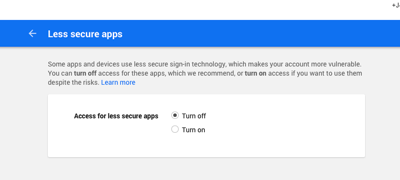
I also found this notice …

and I could see where our legitimate logons had been blocked (but marking those as legitimate did nothing) …
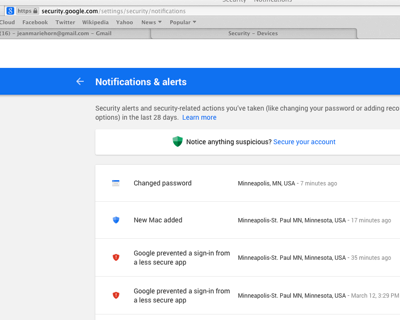
I can’t find Access to Less Secure Apps controls on my own Google accounts [3]; I think it’s automatically enabled after an account hack or if you click the “Secure your account” link in “Notifications and Alerts” or in the “Devices & activity” above. (Maybe this was mentioned in the email from Google? That would be nice.)
If Access for less secure apps is on, then this article applies:
Allowing less secure apps to access your account - Accounts Help
Google may block sign in attempts from some apps or devices that do not use modern security standards. Since these apps and devices are easier to break into, blocking them helps keep your account safer.
Some examples of apps that do not support the latest security standards include:
The Mail app on your iPhone or iPad with iOS 6 or below
The Mail app on your Windows phone preceding the 8.1 release
Some Desktop mail clients like Microsoft Outlook and Mozilla Thunderbird ……
To help keep your account secure, we may block these less secure apps from accessing your account, and you’ll see a “Password incorrect” error when trying to sign in. If this is the case, you have two options:
Upgrade to a more secure app that uses the most up to date security measures. All Google products, like Gmail, use the latest security measures.
Go to Allow less secure apps and choose “Allow” to let less secure apps access your Google account. We don’t recommend this option because it may make it easier for someone to gain access to your account…
Yeah, all you get is a “password incorrect” error. Which is wrong of course, your password is fine. Problem is, Mail.app for OS X isn’t designed to say “Google doesn’t like me”. It tries to connect, gets rejected, and renders this as “password incorrect”.
Once I figured out the problem I found Google’s April 2014 security blog announcement:
Google Online Security Blog: New Security Measures Will Affect Older (non-OAuth 2.0) Applications
… beginning in the second half of 2014, we’ll start gradually increasing the security checks performed when users log in to Google. These additional checks will ensure that only the intended user has access to their account, whether through a browser, device or application. These changes will affect any application that sends a username and/or password to Google.
To better protect your users, we recommend you upgrade all of your applications to OAuth 2.0. If you choose not to do so, your users will be required to take extra steps in order to keep accessing your applications.
You do know what version of OAuth OS X Mail.app uses, don’t you? Oh, wait, does Mail.app even use OAuth?! It appears so as of 10.0.3 (Yosemite); I suspect Google considers any OS X app (Mail, Calendar, Contacts) prior to Yosemite to be less secure.
There’s a bit more useful information in this April 2014 ghacks.net article. I’m sure you read that one regularly to keep your Google services working smoothly! As noted in the article, you can enable Access for less secure apps [5]. That took care of my friend’s problem.
Sigh.
My friend asked me what regular people do. My answers was, unfortunately, they don’t/can’t. The writing has been on the wall for a few years — civilians should not own “computers”. They should a single iOS device [6] and do everything through Apple [7]. This kind of thing is only going to get worse.
- fn -
[1] But what about the accesses Google might not have blocked? Google Account security now lets you see what devices have signed in from where over the past 28 days as well as review your security notifications. Between those and reviewing your Account Permissions you can get a rough idea if an unsophisticated attacker got by Google’s secondary defenses.
[2] I also have a Lion machine the kids use a bit. It’s no longer being updated of course, and I should probably retire it.
[3] I checked both my 2FA and non-2FA Google Apps/Google accounts and didn’t see it on any of them.
[4] First I went through her access history and authorized a number of them. Turns out that’s pointless, Google just provides that to keep us confused.
[5] Or enable 2FA. Google 2FA is less of a PITA than it once was, but it’s not ready for civilian use. Too many ways to go wrong, especially when a device is stolen.
[6] I don’t think Android is a good choice. Sorry. The single best choice for most is probably an iPhone 6+. There’s an unmet need for an flip-phone-like compact device that provides simple phone services to a companion iPad. Maybe Apple Watch version 3 will do that.
[7] if Apple doesn’t do it, then give up.
Subscribe to:
Posts (Atom)