It's been a year since Gmail started marking legit emails a spam: Gordon's Tech: Gmail spam filter is running amok again. They got that under control, but now they're having serious problems again. Even names that I've marked as always approved are being sent to spam, including notifications of posts sent from blogger.
I'm back to checking my spam box for errors.
Friday, August 15, 2008

Thursday, August 14, 2008
Toodledo gets it
I feel like I've been wandering in a strange country, speaking a language nobody else understands.
Suddenly, unexpectedly, I find a friend in Toodledo (awful name)
Toodledo offers an iPhone optimized web view, they have great export options, an iPhone web app view, and they integrate with ToDo (iPhone $10).
This looks promising!
Update: Note that Toodledo deletes old tasks and limits review of past task to 3 days. For $15 you get more functionality, but you have to pay $30 for unlimited storage. If it works I'll try the $15 option until I see what Apple will deliver. I can do that because of their very good import/export functionality -- otherwise I wouldn't try them at all.
Check out the connections list. These guys are definitely data geeks. Alas, their aesthetics are lousy. They really need to invest in a sexy web site expert. I bought ToDo for $10, so I'm paying bucks to get tasks working post-Palm.
Update 8/16/08: After a painful uploading of tasks to Toodledo, I realize just what a problem their backwards interface is. They're really strong on data integration, but week on UI.
For example, it wasn't clear at all how I could operate on multiple tasks.
Mercifully, they have incredibly responsive tech support. The multi-task support is related to search. Perform a search, then click multi-edit.
It's not nearly as clear as Remember the Milk's set operations but it does the trick.
iPhone ToDo.app will sync with RTM as well as Toodledo, but it cannot be used to move data between the services. It always erases data on a service change. (Do the services require that? Toodledo is big on data freedom, so I want to give them the benefit of the doubt there.)
Update 9/12/08: I'm a happy Toodledo customer. The UI is ugly, but it's powerful if you study it. So I'm fine with that, I just worry that without a prettier face they won't get enough business. I just bought Appigo's Notebook app to sync with Toodledo Notebook -- only to discover that there's no Notes import yet. Ah well ...
Update 10/14/08: I'm happy to see Toodledo has added search to Notes, but I'm surprised to realize that Task search only scans titles, not notes. If you want to search notes you go to the notes field in advanced search. There's no "notes" and "task title" option. It's like working with a very simple database table. I'll see if I get a response to a support email.
Suddenly, unexpectedly, I find a friend in Toodledo (awful name)
Toodledo :: A to-do list to organize your tasksHeck, even if it doesn't work I give them points for caring!
...If you already use a task manager, you won't want to type in your tasks all over again. Toodledo can import tasks from many sources, including your Palm OS PDA, Microsoft Outlook, Apple's iCal, and other online todo lists...
Toodledo offers an iPhone optimized web view, they have great export options, an iPhone web app view, and they integrate with ToDo (iPhone $10).
This looks promising!
Update: Note that Toodledo deletes old tasks and limits review of past task to 3 days. For $15 you get more functionality, but you have to pay $30 for unlimited storage. If it works I'll try the $15 option until I see what Apple will deliver. I can do that because of their very good import/export functionality -- otherwise I wouldn't try them at all.
Check out the connections list. These guys are definitely data geeks. Alas, their aesthetics are lousy. They really need to invest in a sexy web site expert. I bought ToDo for $10, so I'm paying bucks to get tasks working post-Palm.
Update 8/16/08: After a painful uploading of tasks to Toodledo, I realize just what a problem their backwards interface is. They're really strong on data integration, but week on UI.
For example, it wasn't clear at all how I could operate on multiple tasks.
Mercifully, they have incredibly responsive tech support. The multi-task support is related to search. Perform a search, then click multi-edit.
It's not nearly as clear as Remember the Milk's set operations but it does the trick.
iPhone ToDo.app will sync with RTM as well as Toodledo, but it cannot be used to move data between the services. It always erases data on a service change. (Do the services require that? Toodledo is big on data freedom, so I want to give them the benefit of the doubt there.)
Update 9/12/08: I'm a happy Toodledo customer. The UI is ugly, but it's powerful if you study it. So I'm fine with that, I just worry that without a prettier face they won't get enough business. I just bought Appigo's Notebook app to sync with Toodledo Notebook -- only to discover that there's no Notes import yet. Ah well ...
Update 10/14/08: I'm happy to see Toodledo has added search to Notes, but I'm surprised to realize that Task search only scans titles, not notes. If you want to search notes you go to the notes field in advanced search. There's no "notes" and "task title" option. It's like working with a very simple database table. I'll see if I get a response to a support email.
Macworld's review of iPhone task apps
Macworld continues to impress. Dan Frakes has written a series of articles on iPhone task managers, even as desperate iPhone users invent ingeniously pathetic workarounds for Apple's task gap.
His first review covered apps as of 7/23/08:
I'm going to be working through the list and I'll update this post if I find something I like. I do hope that either Apple will do something or that the Omni Group will get OmniFocus ready for release (with a more sane sync mechanism).
His first review covered apps as of 7/23/08:
Macworld | Review: Basic to-do apps for iPhone and iPod touchSince then he's added Zenbe lists and ToDo.
... a quick stroll through the list of productivity apps in the App Store shows you how many developers have stepped up to the plate: earlier this week I found 13 to-do-list programs; five more-advanced task managers designed around the Getting Things Done (GTD) system or aimed at complex project management; seven apps focused on keeping shopping lists; and a handful of apps, such as Jott (), that use voice-recording and other unique approaches to help you remember the myriad tasks you need to complete in your busy life...
I'm going to be working through the list and I'll update this post if I find something I like. I do hope that either Apple will do something or that the Omni Group will get OmniFocus ready for release (with a more sane sync mechanism).
Using Outlook Tasks: a mini-tutorial
This post, reused from another setting, is a bit more complex than I typically do. I think it might be of interest to heavy-duty users of Outlook tasks. It’s also a marker for comparison to the plethora of iPhone/OS X task/gCal/project mgt tools that are emerging.
Obviously I push Outlook tasks into the domain where I ought to be using a lightweight Project Management tool; there are reasons for my sticking with Outlook …
--------------------------------
This mini-tutorial is really a guide to what’s possible with Outlook task management. For more details on how to do things, I’d recommend the Outlook Help file. It’s pretty good once you know what’s possible. Google will usually point you to Microsoft tutorials on these topics as well.
The first three topics are relatively basic, but the Views take some getting used to.
Tasks: Key things to know
Create a task by drag and drop email or appointment or contact on a task icon, such as an Outlook Shortcut to your task folder.
If you create a task by dragging and dropping an email, you’d normally file or delete the email. You can always find it by search.
If you use Task Views (below), you can drag and drop to change Due Date (including remove), Priorities, and add categories.
You can drag and drop tasks on a calendar to create appointments with matching dates..
Ignore the “start date” field, it’s worthless and behaves oddly. Just use the Due Date.
Before you drag and drop an email to create an appointment, task, or note, first click in the subject line and make it something useful. That way you kill two birds with one stone – you have a descriptive subject to help with search and replies and you have matching descriptive subject in the task. The fact that they match also helps if you want to do full text search to locate an email you’ve dropped in your “save” folder.
Tasks: priorities and dates
I’m not always consistent, but this is the meaning I give to Task priorities in Outlook.
High priority: must have due dates. Move forward if not dealt with. Assign to categories. Often has a calendar slot reserved for associated work.
Normal priority: may have due dates if quick or topical, otherwise do as available. Assign to categories. Some may be abandoned. Rarely has a protected calendar slot.
Low priority: never have due dates. Mostly keep as a record of “like to do”. Tend to discover on searches. May have categories.
Task format: the “mini-project”
An Outlook task doesn’t have much structure. I use the Subject, Category and Due Date attributes, but I follow a convention of my own for the Task note:
“next steps” as bullets at the top so I can quickly see what to do next
History items (past actions) with a date stamp
Notes and emails that get attached to a task
Tasks and Categories: A Project can be a Category
I take a loose approach to Categories. You need to know that Outlook 2003 stores it’s “master category list” in the registry (!), when you change machines you lose it! Happily the Categories are just strings stored in the tasks, so they don’t go away.
Because of this I just ignore the Mater Category list. Examples of my categories include:
- Product names
- Release numbers
- People names
- Project names
- Customer names
- Business partners
Creating Custom Views for Reviewing and Editing your Tasks
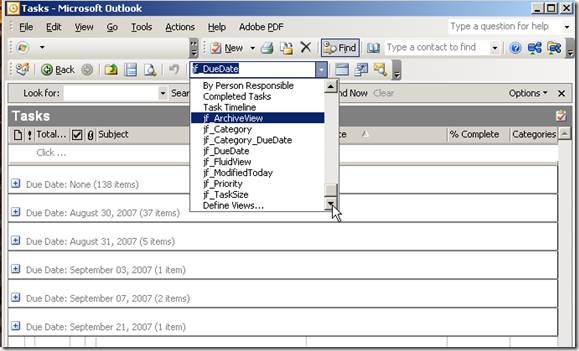
You can use Outlook’s canned Task Views, but they’re feeble. There’s no “due date’ view, for example (amazing!).
Once you define your Views (see below) the easiest way to select them is to configure your Outlook toolbar to show your Views in a drop down list.
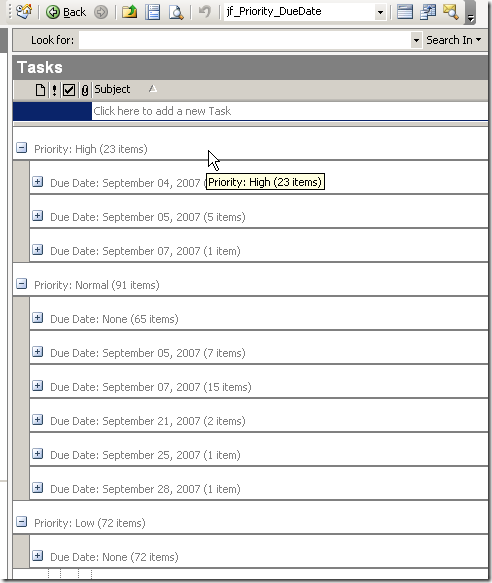
For example, here I have “jf_Priority_DueDate” selected as my View. I have the headings collapsed so you can’t see the tasks, but if you opened the heading you could drag and drop a task to change priority or due date using this View.
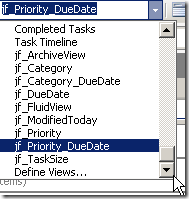
From this drop down list of Views you can chose the “Define Views” item to create custom views.
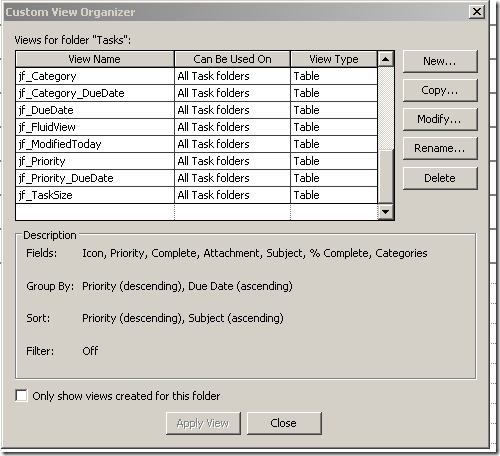
If you choose to Define a View, I recommend copying from a default view rather than editing it. I prefix mine with jf_ to differentiate the ones I’ve created:
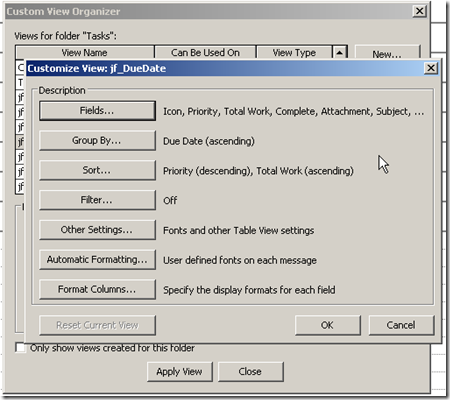
Here’s an example of a Custom View screen:
Tasks: View by Category (and the bug)
Outlook 2003 has a major bug with Category views. So does Outlook 1999, 2000, XP, etc. This bug was only fixed in Outlook 2007.
If you view by category, then sort on any header, your custom view loses the category setting. You have to recreate it. The hundredth time you do this you learn not to sort when in category view. It took Microsoft 8 years, from Outlook 1999 to Outlook 2007, to fix this.
Tasks: View by Date
Tasks: View by Priority and Date
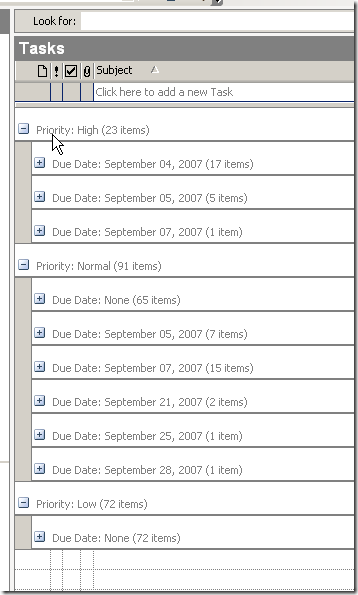
I’ve just started using this view but it’s quite powerful. I can assign tasks to both priorities and dates in a single move.
Essential iPhone troubleshooting article
Yep, Apple melted. They flew too close to the sun. They need to stabilize things then give every engineer and analyst a three week vacation and a free flight to Hawaii. They have the money, might as well spend it on a good cause.
In the meantime, an essential article on iPhone troubleshooting …
Macworld | iPhone Central | Troubleshooting iPhone and iPod touch issues
…Your only solution at this point is a full restore of the iPhone. Hold down the Home button on the iPhone, plug it into your USB cable or dock, and wait until you see the special screen shown at right, then release the Home button.
iTunes will then tell you it’s found a phone in recovery mode, and you can then begin the long process of restoring it. First iTunes will reinstall the latest version of the iPhone’s operating system, then it will restore your applications (including data you’ve created in those applications) from your last backup, and then—eventually—you’ll be able to sync your music, videos, photos, and other data back to the iPhone…
I didn’t know restore would also bring back application data, though I’ve hunch data isn’t being synced for Apps that can’t update.
Great article, keep it by your sync cable for regular consultation.
Parenthetically, Macworld is doing surprisingly good work these days.
Update 8/14/08: Yep. As I expected doing the unsync/sync hack for non-updateable Apps does not restore any data.
The iPhone is a mediocre iPod
I have to add this one to iPhone notes you won't read elsewhere.
The iPhone/iTouch are surprisingly mediocre iPods.
They share the erratic control problem with everything else on the iPhone – that’s one demerit. (Due to OS issues iPhone app controls are unpredictably but transiently non-responsive. We all hope this will get fixed soon.)
Worse, there’s no wheel for navigating within a sound or video stream. I miss this tons. It’s darned near impossible to accurately navigate a podcast, and of course one’s figure often obscures points near the start or end of the timeline.
Not only that, but I swear the iPhone randomly forgets my spot in a podcast and restarts at the beginning. Then I curse the timeline UI.
Podcasts are, surprisingly, a big part of the value of the iPod. That means the iPhone is a mediocre iPod. For now.
I hope Apple isn’t running into a patent issue that prevents implementing a virtual version of their own iPod wheel!
Update 11/9/08: On an iPod the alarm clock can wake to a play list. On an iPhone the alarm clock only plays ringtones and the like. No playlist!!
Wednesday, August 13, 2008
Nasty DLL conflict: Office 2003 + Project 2007 + Sharepoint 2007 + IE 7 add on manager = IE 7 crash
This is the most obscure bug I’ve solved in recent times. It showed up a few days ago in my work place where we have to use Office 2003 and some 2007 modules. I assume it’s been triggered by some recent update but it’s an old problem.
If you try to edit in Sharepoint 2007’s [1] “Datasheet” view using Internet Explorer 7. IE 7 crashes instantly. You may see a similar problem with editing Office documents in SP 2007.
The crash details mention MOSS.DLL, but various net resources point to a conflict between two Office 11 and Office 12 DLLs: OWSSUPP.DLL and MOSS.DLL. In particular IE 7’s add-on manager causes it to load the wrong copy.
Yes, DLL Hell again.
Useful references include:
- Groove Advisor The Groove Blog Microsoft Office Groove 2007 with Office 2003
- Office XP integration problem
- SharePoint - IE Crashes when opening Office documents (most complete discussion)
I followed the advice to rename OWSSUPP.CLL in the Office 12 directory. That fixed my problem and Project still loads.
After I did that I found this post: SharePoint - IE Crashes when opening Office documents recommending a repair using Microsoft Diagnostics. That post refers to the Office 2007 SP1 Hotfix package, but that’s hotfix is too old to use now.
I would suggest trying the Diagnostics repair first. If that works please add a comment to this blog post. If it doesn’t work, then rename the Office 2007 DLL as above.
I will update this post as a I learn more.
[1] Microsoft calls Sharepoint “MOSS”. They sure know how to name things.
Tuesday, August 12, 2008
Daring Fireball likes OpenDNS again
I've been thinking of signing up with OpenDNS for the built-in phishing and access controls.
I hesitated due to some concerns about their business practices, best described in Wikipedia. Also, DF was unsure about them.
Now DF has come around:
Update: I tried to create an account, but it didn't do anything. No error message, but no action either. Weird. Turns out their server was done. I was able to create one later that night.
Update 8/28/08: Our home network consists of an Apple AirPort Extreme connected to a Qwest DSL "modem". I changed the DNS settings on the Qwest DSL "modem" to use OpenDNS, the AirPort gets its settings from the Qwest modem and all the machines get theirs from the AirPort -- so this moved everyone over. I enabled filtering and logging (kids), but I haven't bothered with the DynamicDNS notifier -- my IP address doesn't seem to change much.
I hesitated due to some concerns about their business practices, best described in Wikipedia. Also, DF was unsure about them.
Now DF has come around:
Daring Fireball Linked List: Using OpenDNS for Phishing ProtectionI'll give them a try. Since my machines get their DNS information from my router, I'll make changes there.
...The other thing about OpenDNS is that it is fast, fast, fast — for me, it makes web surfing noticeably faster than using the default DNS servers I get from Comcast. I was on the other side of the fence about OpenDNS’s “DNS ” a few months ago, but I’ve come around again...
Update: I tried to create an account, but it didn't do anything. No error message, but no action either. Weird. Turns out their server was done. I was able to create one later that night.
Update 8/28/08: Our home network consists of an Apple AirPort Extreme connected to a Qwest DSL "modem". I changed the DNS settings on the Qwest DSL "modem" to use OpenDNS, the AirPort gets its settings from the Qwest modem and all the machines get theirs from the AirPort -- so this moved everyone over. I enabled filtering and logging (kids), but I haven't bothered with the DynamicDNS notifier -- my IP address doesn't seem to change much.
Network locations in Mac OS X
One of the minor mysteries of OS X - newly explained:
Using network locations in Mac OS X: ...A 'location' is a set of network preferences...It might have been better if they'd called the tool "custom network preferences", but Locations does have a smoother sound. Most of us rarely need to use anything but Automatic these days, but if you want to experiment with OpenDNS (example: block problem addresses) you can create a custom OpenDNS location.
Sunday, August 10, 2008
Unknown Error during iPhone app install or update
Update 9/14/08: Fixed.
I'm getting this error with the iPhone I was given when my original white 3G phone cracked.
Update 8/11/08: I'm now seeing the same error with every application update that appears. I think that either my iPhone has a hardware bug or restore from backup doesn't work properly. I hope, and suspect, it's the latter.
This time I tried Damien Komala's tip. I deleted the app from the iPhone, then did a selective app sync with the app unchecked, then checked it.
I'm getting this error with the iPhone I was given when my original white 3G phone cracked.
Unkown Error On The iPhone | DamienKomala.comDamien suggests selective installation (see post for details). This worked for me:
... Ok so every time I try and update or upgrade an application on my iPhone I get this “Unknown Error: 0xE800002E. After some adjustments I was able to find a method to resolve, or at least update my apps. Here’s the key ...
- Delete app from iPhone
- Delete app from iTunes
- Click to download. iTunes says I already own the app, offers to redownload.
- Sync
Update 8/11/08: I'm now seeing the same error with every application update that appears. I think that either my iPhone has a hardware bug or restore from backup doesn't work properly. I hope, and suspect, it's the latter.
This time I tried Damien Komala's tip. I deleted the app from the iPhone, then did a selective app sync with the app unchecked, then checked it.
Friday, August 08, 2008
GrandDialer: will this help my phone bill?
AT&T charges me a fortune to call Canada.
But what if I could use my GrandCentral account to call Canada, then GrandCentral connects me in?
GrandDialer would make that easier:
8/8/08: It works. Inferior voice quality and some echo, so I don't know how well it will do for my elderly parents. Good lord. This could pay for my iPhone data plan. It appears to be completely legal, but one suspect a bill will appear someday.
Except that the GC site doesn't mention how Click2Call is charged for long distance calls.
Not surprisingly, other folks noticed this a long time ago. Actually a lot of other people.
No wonder people envy me my GrandCentral account.
It's hard being an elder geek -- I miss out on the tricks the youngsters know.
Now I think I know why Google has been moving very slowly with GrandCentral. It sure makes a good club when you're in discussions with telecom companies.
Update 8/18/08: I've been doing this for 2 weeks. Sometimes the voice quality is excellent, sometimes it's weak -- but it does work.
Update 10/19/08: Still works, has saved me about $100 or so. The quality is very good 25% of the time, very poor 25% and marginal 50%. The marginal quality sort of works for my mother, but is worthless for my father. GrandCentral's VOIP quality is on the high end of what I've seen in my prior experiments; VOIP startups just can't get the quality I need (one suspects the phone companies aren't exactly helpful). So it's a good service for free, but they really couldn't charge much and still be worthwhile for me. If I get a bad connection now I just call back with a regular line, I don't retry the GrandCentral connection.
Update 12/3/08: The quality has improved dramatically in the past few weeks. It's now very similar to landline quality. I wonder if Google is getting ready to do something interesting with VOIP. Maybe the phone companies have displeased them ...
But what if I could use my GrandCentral account to call Canada, then GrandCentral connects me in?
GrandDialer would make that easier:
GrandDialer, an iPhone app for GrandCentral - The Unofficial Apple Weblog (TUAW)This is using the GrandCentral "Click2Call" feature.
...GrandDialer (iTunes link) allows you to use your iPhone to call people using your GrandCentral telephone number....
8/8/08: It works. Inferior voice quality and some echo, so I don't know how well it will do for my elderly parents. Good lord. This could pay for my iPhone data plan. It appears to be completely legal, but one suspect a bill will appear someday.
Except that the GC site doesn't mention how Click2Call is charged for long distance calls.
Not surprisingly, other folks noticed this a long time ago. Actually a lot of other people.
No wonder people envy me my GrandCentral account.
It's hard being an elder geek -- I miss out on the tricks the youngsters know.
Now I think I know why Google has been moving very slowly with GrandCentral. It sure makes a good club when you're in discussions with telecom companies.
Update 8/18/08: I've been doing this for 2 weeks. Sometimes the voice quality is excellent, sometimes it's weak -- but it does work.
Update 10/19/08: Still works, has saved me about $100 or so. The quality is very good 25% of the time, very poor 25% and marginal 50%. The marginal quality sort of works for my mother, but is worthless for my father. GrandCentral's VOIP quality is on the high end of what I've seen in my prior experiments; VOIP startups just can't get the quality I need (one suspects the phone companies aren't exactly helpful). So it's a good service for free, but they really couldn't charge much and still be worthwhile for me. If I get a bad connection now I just call back with a regular line, I don't retry the GrandCentral connection.
Update 12/3/08: The quality has improved dramatically in the past few weeks. It's now very similar to landline quality. I wonder if Google is getting ready to do something interesting with VOIP. Maybe the phone companies have displeased them ...
Fewer posts, more shared items – Google Reader changes my memory management
My iPhone purchase forced me to move from Bloglines to Google Reader. I don’t regret the move; Bloglines was fine but they were clearly running out of steam. Their inability to produce a mobile version was a sad sign that their day has passed. This is a tough industry.
Among Google Reader’s many great features is a convenient way to share feed items with optional annotations.
Here’s my list. It’s not obvious or obviously documented, but this share list itself appears to have a feed [1].
I see a lot of things I’d like to keep track of. Some of them get posts here, some don’t. Now that I’m using this mechanism I’ll reduce the number of “pointer posts” here, and instead periodically point to interesting items I’ve shared – with annotations. Since my shared list combines technical and political, pointers from here will filter out the political.
It is not accidental that this mechanism of sharing works very well with Google Reader mobile on the iPhone.
This is, most interestingly, an extension to my memory management strategy. Google works in mysterious ways.
[1] So if you share items from the shared feed …
How to steal my Google account
My old friend Brendan would know the answer to this Google password change security question:

Yes, to steal my Google account, my primary digital identity, all you need to know is my first phone number.
It's ok to sob quietly now. I understand.
I'm 187 years old, so not that many people know my first phone number any more. Only hackers who've broken into other security systems that ask the same question, and about a dozen other people. For anyone under 25 though, this isn't that hard to learn.
Ok, so I'm not a complete idiot. The answer I stored in Google for that question is a a 200 character hex string taken from GRC secure passwords. So you really would be better off stealing my primary password.
Google, on the other hand, is behaving like a complete idiot. Why is this?
That's the interesting question. It leads to some noteworthy conclusions ...

Yes, to steal my Google account, my primary digital identity, all you need to know is my first phone number.
It's ok to sob quietly now. I understand.
I'm 187 years old, so not that many people know my first phone number any more. Only hackers who've broken into other security systems that ask the same question, and about a dozen other people. For anyone under 25 though, this isn't that hard to learn.
Ok, so I'm not a complete idiot. The answer I stored in Google for that question is a a 200 character hex string taken from GRC secure passwords. So you really would be better off stealing my primary password.
Google, on the other hand, is behaving like a complete idiot. Why is this?
That's the interesting question. It leads to some noteworthy conclusions ...
- Passwords are a complete fail. Schneier has been saying this for years. We are now into the realm of madness. We need multi-factor authentication devices that handle our secondary authentication for us. Yeah, it's not perfect, but, really, this is s#$!@# insane.
- We live in the age of the tyranny of the mean. Even the vast majority of geeks aren't going to figure out how to sync 1Password with an iPhone. Regular folks are going to use one password everywhere and then forget it. Google, like everyone else with these asinine security question is bowing to the reality that humans didn't evolve to live in a digital world. We're maxing out right now.
Thursday, August 07, 2008
My iPhone cracks. Of course. And a new restore glitch.
When I quoted TUAW's coverage of the 3G iPhone plastic crack problem last week, I heard the bells tolling ...
Gordon's Tech: Check your 3G iPhone for cracks
Two thin cracks appeared today next to the volume control and the vibrate toggle switches. No trauma of course, so pretty much what others have seen.
I was near the Apple store getting my son his well earned summer Lego prize, so I figured I'd give 'em a try. A keen young floor staffer was ready to swap the phone on the spot, but since I'd bought it at AT&T I had to go through the "Genius Bar". That took a long time, the Mall of America store was very busy. I saw quite a few new iPhones going out the door.
Ben probably got an hour of computer game time in -- about twice what he's usually allowed. He was a happy camper.
The "Genius" was less keen on a swap, and seemed to be half-heartedly looking for a way out. Or maybe he was just tired and unsure of the procedure for an AT&T phone. Eventually they made the swap for another white phone -- you can't change colors.
I got the distinct impression that Apple has not yet defined a process for the cracks, that each store has to set its own policy.
This is what I learned about the swap process:
So now we see if the problem recurs. Rumor has it that Apple knows what went wrong, and that only white 3G phones in a specific serial number range are affected.
Once I got home the restore process was a bit ugly. The standard restore wouldn't work because the phone had OS 2.0, and the restore wanted 2.01. I had to:
Gordon's Tech: Check your 3G iPhone for cracks
... Cracks 'appearing' in new iPhone 3Gs - The Unofficial Apple Weblog (TUAW)
...The problem is not the plastic, but that the metal frame is too small for the plastic to lock on without causing the stress fractures.' It's pretty clear Apple has a manufacturing defect on its hands.
For those with cracks, taking it back to the Apple Store (or possibly the mobile phone retailer where you made your original purchase) is your only recourse. Several people have noted here and elsewhere that they've successfully had their handset replaced after a careful inspection....I knew this would happen to me. Apple hates me.
Two thin cracks appeared today next to the volume control and the vibrate toggle switches. No trauma of course, so pretty much what others have seen.
I was near the Apple store getting my son his well earned summer Lego prize, so I figured I'd give 'em a try. A keen young floor staffer was ready to swap the phone on the spot, but since I'd bought it at AT&T I had to go through the "Genius Bar". That took a long time, the Mall of America store was very busy. I saw quite a few new iPhones going out the door.
Ben probably got an hour of computer game time in -- about twice what he's usually allowed. He was a happy camper.
The "Genius" was less keen on a swap, and seemed to be half-heartedly looking for a way out. Or maybe he was just tired and unsure of the procedure for an AT&T phone. Eventually they made the swap for another white phone -- you can't change colors.
I got the distinct impression that Apple has not yet defined a process for the cracks, that each store has to set its own policy.
This is what I learned about the swap process:
- You should wipe your phone beforehand. I am kicking myself that I didn't do this -- it could have been done in the store. Of course the "Genius" might have mentioned this too, but I think we were both tired. I changed my primary Google password last night.
- You need to clear any lock password.
- They want the receipt (of course) and all accessories, box, etc. Ended up though that only the phone was swapped.
- They tried to register the phone, but due to technical problems I didn't have my Apple ID available. This turned out to be unnecessary, with iPhone 2.0 a simple SIM swap activates a new phone.
So now we see if the problem recurs. Rumor has it that Apple knows what went wrong, and that only white 3G phones in a specific serial number range are affected.
Once I got home the restore process was a bit ugly. The standard restore wouldn't work because the phone had OS 2.0, and the restore wanted 2.01. I had to:
- Set up as a new phone. First of all I disabled the sync phone as it was trying to sync all the apps.
- Once it was on 2.01 I clicked the "Restore" button to set it back to factory status (wipe the name I gave it). This took a VERY long time and it included firmware restore.
- Then I let it mount again. This time I was able to go through the expected "Set Up Your iPhone" procedure, including the option to restore from backup.
- Then it said it was restoring the phone's settings, and the phone reset again.
- Once again I came to the "Set Up Your iPhone" screen, this time it said an iPhone had been previously synced. I had the option of restoring from "iPhone" (created at step 3) or my prior backup. When I selected my prior backup I got the "restoring iPhone from backup dialog".
- After a longer delay the iPhone displayed a ghostly numeric keypad with the message "voice mail password incorrect ... enter voice mail password". I also had to reenter our WiFi password, my email password, etc. Reassuringly, the backup doesn't store the passwords.
- Then it was done.
Update
Or not.
After I restored I started trying to use the phone. None of my installed apps worked except Google Mobile. I think my dictionary settings have been lost too. Looks like the iPhone restore was a total fail.
I'm now going through another install. Time to backup my desktop calendar and address book!
Update:
Ok, I finally got the restore to work. Here's what I did:
Update 10/21/09: About 10 months later the replacement iPhone developed a 1 cm crack in the top right back corner. No other cracks. This could easily have been traumatic. The phone seems fine otherwise.
Update:
Ok, I finally got the restore to work. Here's what I did:
- Let it register as a new phone. Now I stopped getting the "Set Up Your iPhone" screens. I think they're buggy.
- After my "temp" phone mounted, I right clicked and chose "restore from backup" from the iPhone context menu.
- That restore worked. I did have to reenter my AT&T voice mail PIN and all stored passwords. I also had to redo all sync from iTunes.
Laptop short of space? Remember NTFS compression.
I’d forgotten about NTFS compression. This thorough review, Thrilling tales of NTFS compression, reminded me that it’s a reliable tool for a few circumstances: (Quotes are from the Dans Data link):
- Laptop short of space: “Program Files contains a lot of stuff that's read moderately often but not written to very much, which is a good access profile for compression to have no perceptible speed impact at all, after the half-hour or whatever you'll be waiting for everything in a typical large-ish Program Files, on a laptop with a slow-ish CPU, to be compressed…
… You can't expect a terribly large amount of compression from this, but when I tried it, I turned a 35.4Gb Program Files into a 27.6Gb one - 78% of its previous size, and a perfectly worthwhile 7.8Gb saved…” - Microsoft Access databases (however this may impact I/O slightly). These compress extremely well.
- Windows BMPs – though almost no-one would keep these around outside of (gasp) screen shots pasted into PowerPoint.
Practically speaking, I think NTFS compression is most useful if you have to carry around a lot of large Microsoft Access databases on a laptop (consider using NTFS on a directory) or if you need to free up a few GBs on any laptop.
NTFS compression is not compatible with NTFS encryption (which most people will want to avoid, see the linked DD article). I don’t know if it’s compatible with other encryption schemes corporations apply to hard drives these days.
I think the closest OS X equivalent would be the 10.5 expandable sparse images.
Subscribe to:
Posts (Atom)